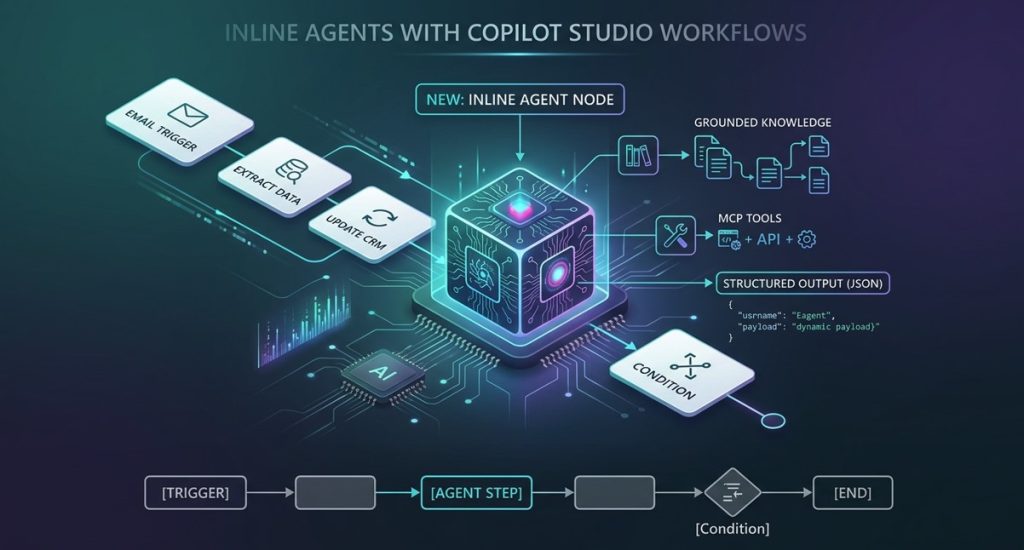
With the introduction of Inline Agents inside Microsoft Copilot Studio Workflows, developers and low-code builders no longer must choose between a rigid Power Automate-style workflow or an open-ended autonomous agent. You can now embed targeted, reasoning-capable AI nodes directly into your step-by-step business automation flows.
Here is a breakdown of what Inline Agents are, why they represent a massive shift in workflow architecture, and how you can leverage them in your next project.
What Is an Inline Agent?
Historically, when building an agentic process in Copilot Studio, you built standalone agents, complete with their own instructions, knowledge bases, and tools and called them via API or child-agent orchestration.
An Inline Agent changes the paradigm: it is an AI reasoning engine built directly inside a single node of a workflow. It is scoped exclusively to that workflow, carrying its instructions, knowledge sources, dynamic prompts, and tools along with the flow execution.
[ Trigger: New Customer Escalation Email]
▼
[ Step 1: Normalize & Fetch Account Metadata]
▼
[ Step 2: Inline Agent Node] ◄── (Grounds on SharePoint Docs + MCP Tools)
Reads email body & metadata
Reasons over refund eligibility policy
Outputs structured JSON: {priority, decision, draft_reply}
▼
[ Step 3: Branch on Priority / Send Response]
Instead of writing complex, multi-branch conditional logic (if/else conditions spanning dozens of nodes to handle messy unstructured text), you hand that specific decision step over to an Inline Agent.
Core Capabilities of Inline Agents
1. Contextual Instructions & Per-Run Prompts
Inline Agents combine the agent’s job description and the per-run prompt into a single instructions field. You write plain-language instructions and inject dynamic content variables from prior workflow steps (e.g., email bodies, database outputs, or API responses) directly into the agent’s prompt.
2. Embedded Tools: Connectors & MCP Servers
An Inline Agent isn’t just a basic LLM prompt, it can act. You can equip it with:
Power Platform Connectors: Any standard or custom API connector.
Model Context Protocol (MCP) Servers: Standardized, curated toolkits that let the agent run complex lookups or execute actions autonomously during its reasoning step.
The workflow hands control to the Inline Agent, and the agent decides which attached tools to invoke, in what order, to complete its assigned task.
3. Hyper-Local Knowledge Grounding
Attach specific knowledge sources, such as internal SharePoint libraries, public web URLs, or custom indexes, directly inside the node. The agent grounds its answers and reasoning steps on these sources without needing access to your company’s entire enterprise knowledge graph.
4. Model Selection Flexibility
Different steps require different levels of intelligence. You can choose the underlying AI model per Inline Agent node: select a faster, lower-cost model for lightweight data transformation, or swap in a high-reasoning frontier model for complex logic and unstructured evaluation.
5. Work IQ & Personal Context
When workflows run on behalf of individual employees, you can enable Work IQ. This grounds the Inline Agent in the user’s active Microsoft 365 signals, including recent emails, Teams chats, calendar events, and documents, producing highly personalized dynamic outputs.
When to Use Inline Agents vs. Published Standalone Agents
Understanding when to embed an agent inline versus creating a global, standalone agent is key to keeping your architecture maintainable.
| Feature | Inline Agent | Standalone / Published Agent |
| Scope | Bound directly to a single workflow | Global; accessible across multiple apps & bots |
| Setup & Maintenance | Configured in-place inside the node; zero external dependency | Managed in its own canvas; requires lifecycle management |
| Context Sharing | Direct access to workflow variables and trigger data | Requires payload passing via parameters or topics |
| Best For… | Task-specific judgment, schema mapping, and edge-case handling within an automated flow | Conversational assistants, re-usable enterprise micro-services, and broad domain experts |
Rule of Thumb: If an agent’s task is unique to one business process, make it an Inline Agent. If you find yourself recreating the same inline logic in three different workflows, promote it to a Standalone Agent and call it via the agent node.
Real-World Use Case: Intelligent Exception Handling
Consider a typical supply chain exception process: a supplier emails an unexpected invoice discrepancy or delivery delay.
Trigger: A workflow fires when an email with an attachment land in a shared inbox.
Deterministic Actions: Extract attachment text, fetch PO details from SAP via standard connectors.
Inline Agent Step:
Instructions: “Compare the extracted invoice line items against the SAP purchase order. Identify any discrepancies, evaluate if they fall within our standard 5% variance allowance policy (attached as Knowledge), and output a JSON schema with status, summary, and suggested_action.“
Execution: The Inline Agent reads the contract policy, parses the messy invoice context, runs the logic, and returns clean structured output.
Conditional Logic: The workflow reads the JSON payload output by the Inline Agent and routes the approval to Teams or auto-approves the line item in ERP.
Getting Started
Navigate to Workflows in Microsoft Copilot Studio and create a new workflow (or edit an existing one).
Open the Add Panel in the workflow designer and select the Agent icon.
Choose New agent for this workflow to expand the inline configuration panel.
Write your instructions, attach relevant tools or knowledge, configure your desired structured output, and test the node directly in the side-panel runner before publishing.
Sum up
Inline agents give low code developers the best of both worlds: deterministic execution where you need control, and adaptive AI reasoning right where processes get messy.

